HOW TO INSTALL OS :Raspberry Pi OS Lite (32-bit) with no desktop environment
No external monitor, keyboard and mouse needed to be connected to the Raspberry PI
Project date is 11 jan 2022
PROJECT SCOPE
GOAL : To install “Raspberry PI OS Lite (32) with no desktop environment” where there is no need to connect a hdmi monitor and usb mouse/keyboard to the Raspberry PI
My Project cost:150 Euro but it can be done for cheaper (is use newest Pi)
Low end Project cost will be around 18 Euro (depending what materials you already have at home)
OS/Software/Apps used:
- Raspberry Pi OS Raspberry Pi Imager program
- Angry IP scanner
- Link : https://angryip.org/
- Putty
- Reverence: how to setup fixed IP number for PI
Please be aware if you use a windows pc (or other device) to connected to your Raspberry Pi then it must be on the same wifi network (SSID).
SETUP GUIDE
PREPARING THE RASPBERRY PI OS
This action is done on a Windows PC
To start you need to download the Raspberry Pi OS Raspberry Pi Imager program
Link: https://www.raspberrypi.com/software/
- Connect a micro SD (SDHC) (at least a size of 10GB) to a windows PC (you can also use a USB Stick)
- Download the Raspberry Pi OS Raspberry Pi Imager program
- Start the Raspberry Pi OS Raspberry Pi Imager program on the pc
- Select image: RASPBERRY PI OS LITE (32-BIT) WITH NO DESKTOP ENVIRONMENT
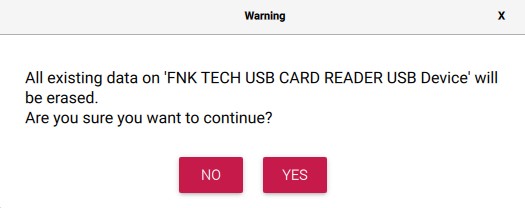
- Write IMAGE to the micro SD (SDHC) you connected to the computer
SETUP WIFI CONNECTION IN BOOT
With this option you can configure the Raspberry PI to connected to your WIFI network without having to connect a Display Keyboard/Mouse to your Raspberry PI Device
This action is done on a Windows PC:
Source link for reference : https://www.raspberrypi-spy.co.uk/2017/04/manually-setting-up-pi-wifi-using-wpa_supplicant-conf/
(many thanks to www.raspberrypi-spy.co.uk)
- Reinsert the Micro SD card where you install the Raspberry PI OS on
- Op the USB Drive called Boot (in my case that is the G drive)
- Create the following file in the root folder: wpa_supplicant.conf
country=NL
ctrl_interface=DIR=/var/run/wpa_supplicant GROUP=netdev
update_config=1
network={
ssid=”wifi_ssid”
psk=”wifi_password”
}
SETUP SSH IN BOOT
This is used to connect by (wifi) network to the Raspberry Pi
This action is done on a Windows PC:
- Reinsert the Micro SD card where you install the Raspberry PI OS
- Op the USB Drive called Boot (in my case that is the G drive)
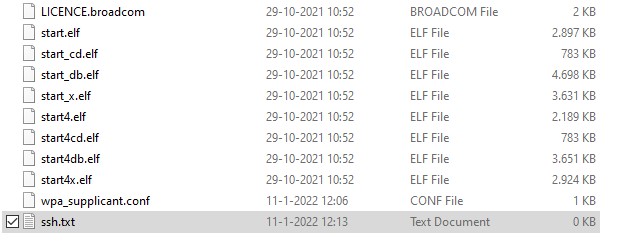
- Create the following file in the root folder: ssh or ssh.txt
The ssh file can be left empty.
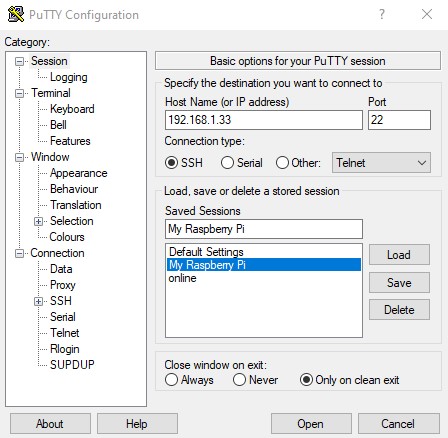
SSH connection to Raspberry PI i use Putty
Download link: https://www.chiark.greenend.org.uk/~sgtatham/putty/
BOOT RASPBERRY PI With CREATED PI OS IMAGE an find IT ON THE NETWORK
This action is done on the Raspberry PI and on a Windows PC::
- Install the Micro SD card in the Raspberry PI
- Power up the Raspberry PI
- It will take some time to connected to the network 30 – 60 sec
Now you need to find out your Raspberry PI IP number
For this i use angry IP scanner
Download link: https://angryip.org/
I will not go in-depth about this tool but what i do is type in my network range and search the IP that has port 22 open (remember we have activated ssh and ssh uses port 22)
In this case you can see my Raspberry Pi is on IP number 192.168.1.33
UPDATE YOUR RASPBERRY PI
This action is done on a Windows PC to the Raspberry PI With Putty:
You need to update your Raspberry PI
Login as PI
Default password is raspberry
Do the following:
- Insure your Raspberry Pi is running (ping it for example or use Angry IP scanner)
- Connect to your Raspberry PI using Putty
- Update the Raspberry Pi using the command : sudo apt update -y && sudo apt upgrade -y

sudo apt update -y && sudo apt full-upgrade -y
When the update is finished reboot the Raspberry PI using the command : sudo reboot 
sudo reboot
change password on my raspberry pi
This action is done on a Windows PC to the Raspberry PI With Putty:
Login as PI
Default password is raspberry
It is smart to change the raspberry pi Password, this can be doen with command passwd
- Connect to your Raspberry PI using Putty
Use this command to change the pasword:
passwd
When typing the new password it will not display it
SETUP TIMEZONE
This action is done on a Windows PC to the Raspberry PI With Putty:
This will insure your Raspberry PI clock will match your timezone
Do the following
- Connect to your Raspberry PI using Putty
- To check the current timezone what is use use command
- sudo timedatectl status
- Show list of timezones use command
- sudo timedatectl list-timezones
- To set the timezone for example Europe, Amsterdam (CET, + 01:00)
- sudo timedatectl set-timezone Europe/Amsterdam