PROJECT SCOPE
GOAL : To stream analog audio to SONOS Speaker(s) especially for record players
My Project cost:150 Euro but it can be done for cheaper (is use newest Pi)
Low end Project cost will be around 90 Euro (depending what materials you already have at home)
Project cost estimation is including the Behringer UFO202 audio interface USB (this is around 23 euros)
OS/Software/Apps used:
- Raspberry Pi OS Raspberry Pi Imager program
- Angry IP scanner
- Link : https://angryip.org/
- Putty
- Icecast
- Link : https://icecast.org/
- Darkice
- Link : http://www.darkice.org/
- SONOS Apps
- YouTube video
Please be aware your Raspberry Pi must be on the same wifi network (SSID) as the SONOS system.
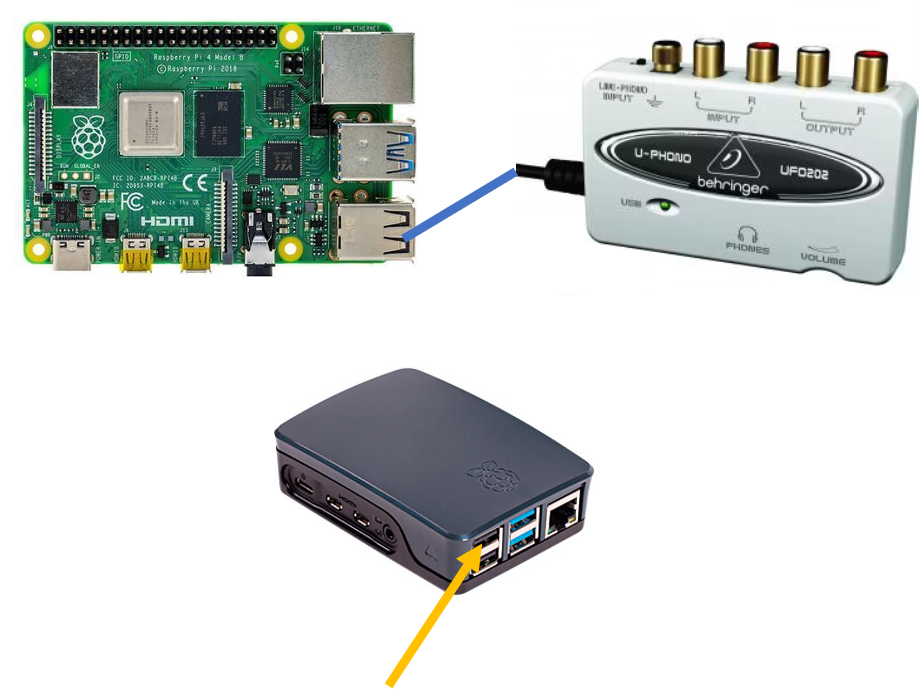
Extra hardware needed: U-PHONO UFO202
Behringer UFO202 audio interface USB Specifications:
The Behringer UFO202 High-quality USB Audio Interface with Built-in Phono Preamp and Massive Software Package for Digitalizing Your Tapes and Vinyl Records connects to your turntable, cassette player, etc. with your computer for recording, playback and Transfering Your Tapes and Vinyl Records via a simple USB connection.
The Behringer UFO202 High-quality USB Audio Interface includes Audacity vinyl restoration, noise-reduction, editing and recording software, comprehensive podcasting software and over 150 virtual instruments and effect plug-ins.
The Behringer UFO202 High-quality USB Audio Interface main features include:
- High-quality USB audio interface connects your turntable, cassette player, etc. with your computer for recording and playback
- Transfer and restore your valuable vinyl records and tapes to your computer via a simple USB connection
- Massive software bundle includes Audacity vinyl restoration, noise-reduction, editing and recording software, comprehensive podcasting software and over 150 virtual instruments and effect plug-ins
- Revolutionary energyXT2 Compact music production software included with feature-rich audio/MIDI sequencer that loads almost instantaneously on all computer platforms
- Phono input switchable to line input source
- Stereo output allows easy connection and playback of computer audio files over your home sound system
- High-resolution 48 kHz converters for high-end audio quality
- Stereo Headphone output with dedicated Level control lets you monitor your input source
- Works with your PC or Mac computer—no setup or drivers required
- Powered via USB — no external power supply needed
- High-quality components and exceptionally rugged construction ensure long life
- Conceived and designed by BEHRINGER Germany
- EnergyXT 2.5 Compact BEHRINGER Edition software available as a free download
SETUP GUIDE
FIRST YOU NEED TO DO THESE STEPS BEFORE SETUP FOR SONOS STREAMING
HOW TO INSTALL OS :Raspberry Pi OS Lite (32-bit) with no desktop environment
No external monitor, keyboard and mouse needed to be connected to the Raspberry PI
BOOT RASPBERRY PI ONLY WHEN CONNECTED TO MY WIFI NETWORK
No external monitor, keyboard and mouse needed to be connected to the Raspberry PI
Ready to install software for streaming to SONOS
INSTALL ICECAST STREAMING server on raspberry pi
This action is done on a Windows PC to the Raspberry PI With Putty:
- Make sure the U-PHONO UFO202 is connected to the USB of the Raspberry PI
(best is to connect it to te Raspberry PI when it is switched off)
(shutdown command is: sudo shutdown now) - Power on Raspberry PI (then wait for some 30 sec to be connected to the network)
- Connect with putty to your Raspberry PI
- login on the Raspberry PI (default account:pi default password:raspberry)
check if U-PHONO UFO202 is connected and working
This action is done on a Windows PC to the Raspberry PI With Putty:
Run the following command:
sudo arecord -l
Output in console will be:
**** List of CAPTURE Hardware Devices ****
card 1: CODEC [USB Audio CODEC], device 0: USB Audio [USB Audio]
Subdevices: 1/1
Subdevice #0: subdevice #0
INSTALL ICECAST RASPBERRY PI
This action is done on a Windows PC to the Raspberry PI With Putty:
This is used to setup an streaming server on Raspberry PI
Run the following command:
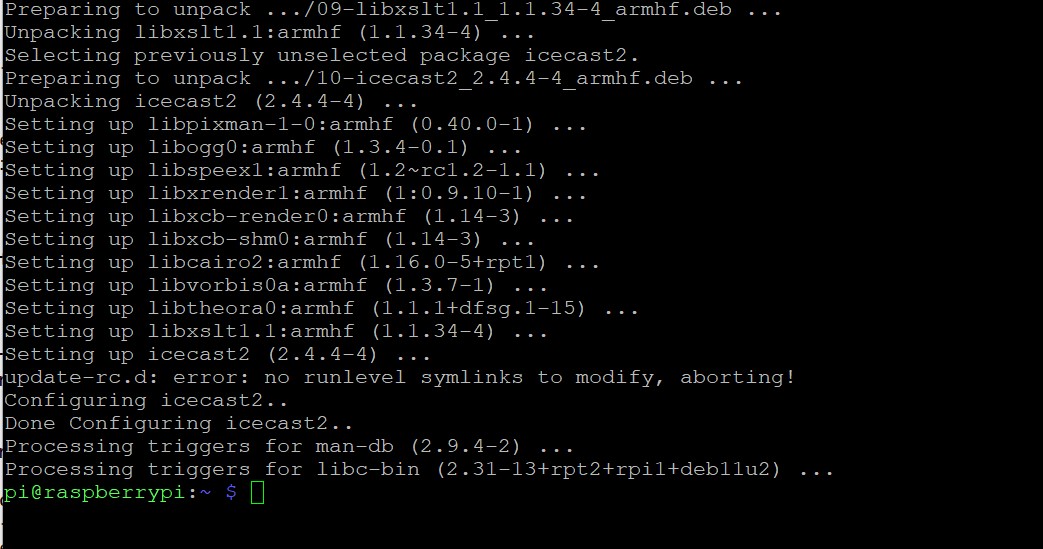
sudo apt install icecast2
On the question “Do you want to continue”
Type Y (yes)
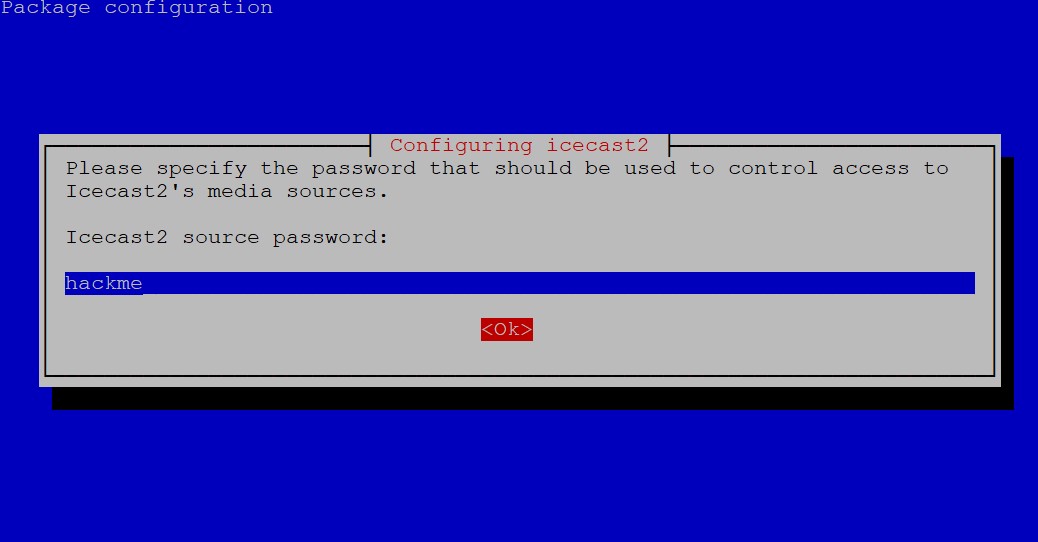
After this the configurator will start
In this case i left everyting default (see also slideshow)
(note : this means default password is used in icecast, for public use this is NOT smart)
icecast config file can be found in /etc/icecast2/icecast.xml
** INSTALL IS DONE **
INSTALL darkice ON RASPBERRY PI
This action is done on a Windows PC to the Raspberry PI With Putty:
This is used to make a mountpoint to stream audio from USB device to icecast streaming server on Raspberry PI
Run the following command:
sudo apt install darkice
On the question “Do you want to continue”
Type Y (yes)
the CONFIGURATION FILE /HOME/PI/DARKICE.CFG
This action is done on a Windows PC to the Raspberry PI With Putty:
Content darkice configuration file
To create and edit the file darkice.cfg run the following command:
nano /home/pi/darkice.cfg
(note : nano is an editor)
use crtl-o (save file) and ctrl-x (exit nano editor)
my/home/pi/darkice.cfg file content:
[general]
duration = 0 # duration in s, 0 forever
bufferSecs = 1 # buffer, in seconds
reconnect = yes # reconnect if disconnected
[input]
device = hw:1,0 # `pulse’ for Pulseaudio
sampleRate = 44100 # sample rate 11025, 22050 or 44100
bitsPerSample = 16 # bits
channel = 2 # 2 = stereo
[icecast2-0]
bitrateMode = vbr # variable bit rate (`cbr’ constant, `abr’ average)
quality = 1.0 # 1.0 is best quality
format = mp3 # format. Choose `vorbis’ for OGG Vorbis
bitrate = 256 # bitrate
server = localhost # or IP
port = 8000 # port for IceCast2 access
password = hackme # source password to the IceCast2 server
mountPoint = rapi.mp3 # mount point on the IceCast2 server .mp3 or .ogg
name = mystream
MANUAL start the icecast and darkice service on Raspberry pi
This action is done on a Windows PC to the Raspberry PI With Putty:
To start the icecast and darkice service to check if it is working
This must be done in this order. the icecast service MUST run before the darkice service
for starting/restarting the icecast service use the following command:
sudo systemctl restart icecast2.service
sudo /usr/bin/darkice -c /home/pi/darkice.cfg
(note: if you close putty or use ctrl-c in putty darkice will stop. this is only for testing)
REMOTE CHECK IF icecast and darkice ARE WORKING
This action is done on a Windows PC or a system with a internet browser
Check if icecast and darkice is working and you can make a remote connection
Ensure that icecast and darkice is running on Raspberry PI
Open internet browser on your pc or other device.
Open link : http://”your raspberrypi ip #”:8000
in my case this is : http://192.168.1.33:8000
See left slideshouw what you should get
To see the mountpoint you need login.
click on Administration in the Icecast2 status page
in the popup windows type Username=admin and Password=hackme
START ICECAST aND DARKICE when raspbery pi start/restarts (cron)
This action is done on a Windows PC to the Raspberry PI With Putty:
This will insure that the service icecast and darkice will start everytime the Raspberry PI is powered on or rebooted.
if you are still in testmode then press ctrl-c or reconnect with putty to your Raspberry PI
We are going to use cron to create a startup
see also link : https://www.raspberrypi.com/documentation/computers/using_linux.html for more information.
Use the following command:
crontab -e
First time it will ask what editor to use. select 1 for nano editor
Goto the the end of the file and add the following line:
@reboot sleep 10 && sudo /home/pi/darkice.sh
use crtl-o (save file) and ctrl-x (exit nano editor)
(note : the reboot will insure the script will run every time the Raspberry Pi is powered )
Create the darkice.sh file
nano /home/pi/darkice.sh
Edit the following in the file:
#!/bin/bash
#start a service
sudo systemctl restart icecast2.service
sudo /usr/bin/darkice -c /home/pi/darkice.cfg
YOu need to make the file executable
Use the following command:
sudo chmod 777 /home/pi/darkice.sh
Reboot the Raspberry PI
sudo reboot
setup STREAM channel in the sonos app
This action is done on a Windows PC and SONOS app on the Windows PC
Setup and configure the audio stream in the SONOS app.
Make sure you have icecast and darkice running on Raspberry PI and also a analoog audio device connected to the U-PHONO UFO202. (and the U-PHONO UFO202 usb connected to the Raspberry PI)
You need to have the SONOS App installed (download link SONOS Apps (Link https://support.sonos.com/s/downloads)
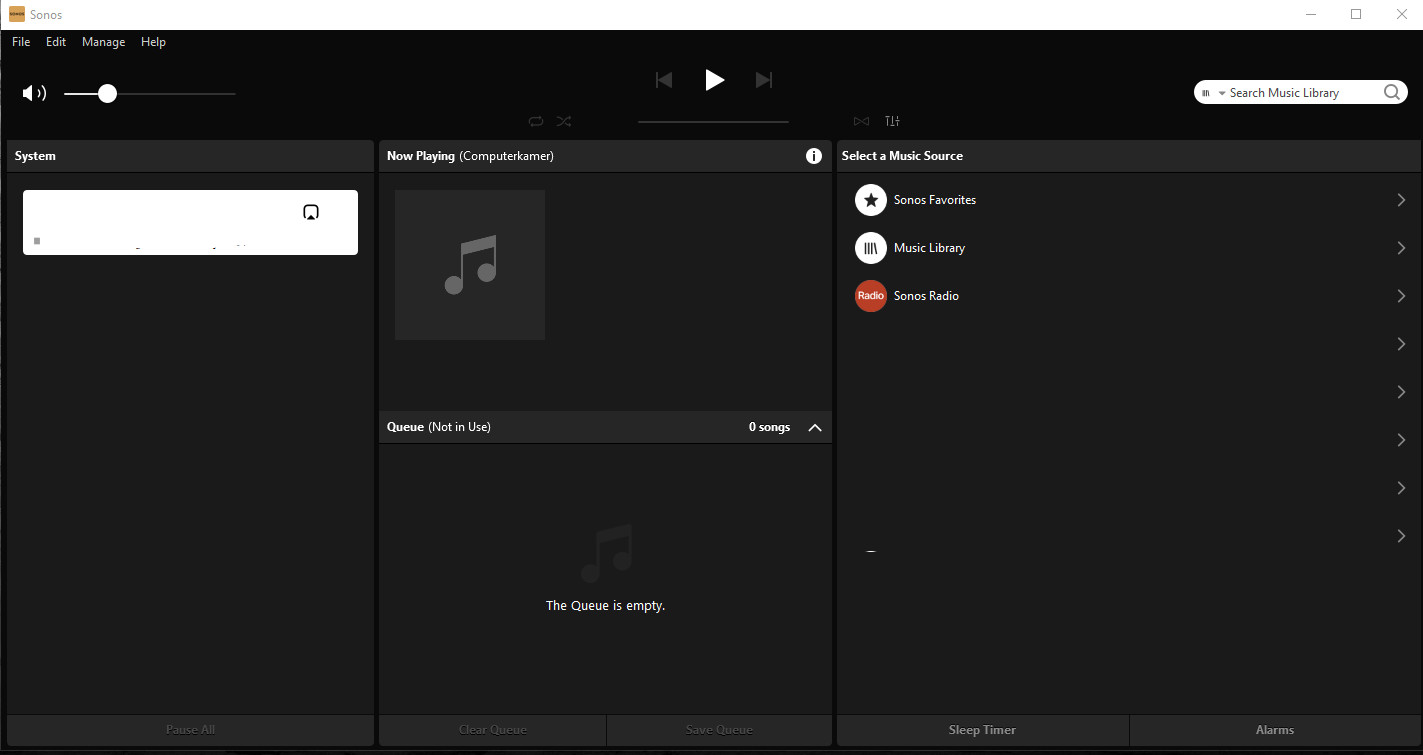
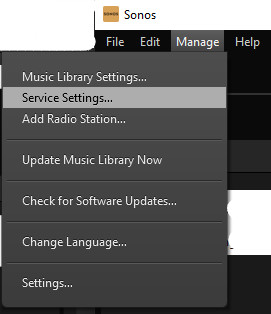
Start the SONOS App (see also left the slideshow)
From menu select Mange, Service Settings…
Select Add
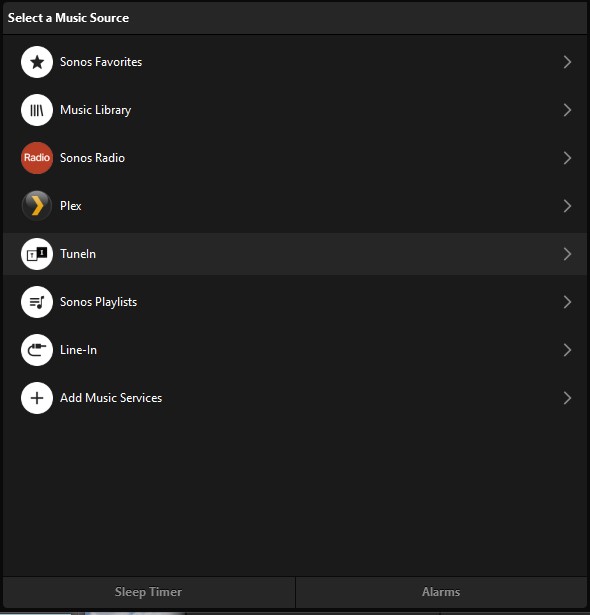
Select Tuneln service and click on Add
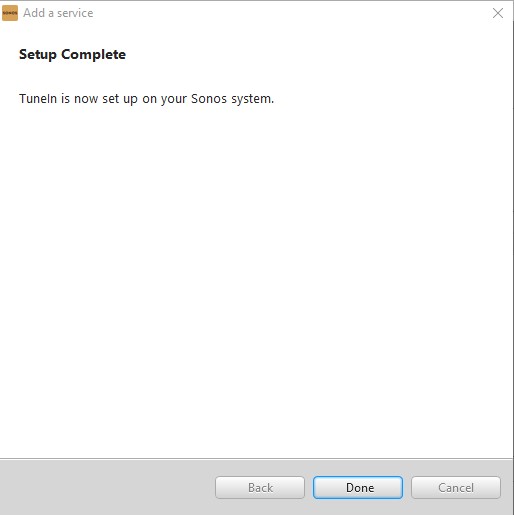
Click on Setup Tuneln
Click on Done
(In my case it did not look like the service was added but when i go back to the mean screen off the app i can see it is there)
From Select a Music Source click on Tuneln
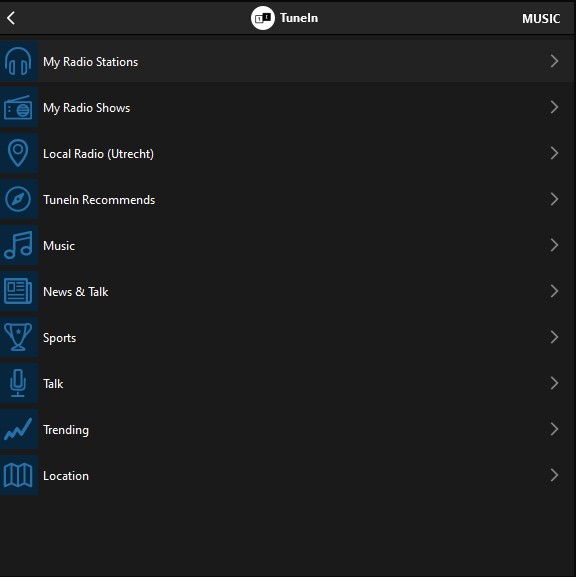
Click on My Radio Stations
Click on Add New Station
in “Add a Radio Station” fill in
Streaming URL http://192.168.1.33:8000/rapi.mp3 (if you change anything of the settings/config you used in icecast/darkice you need to use your settings)
(note : where the ip number is use your Raspberry PI IP number)
in “Station Name” add a name you recognize (it can be anything)
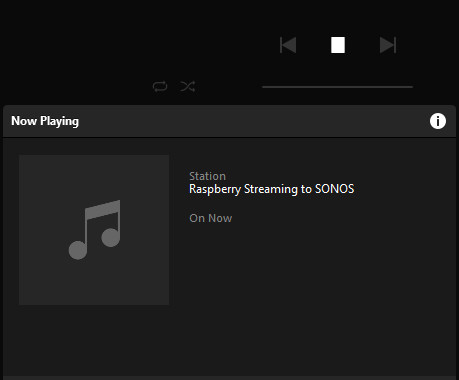
I used Raspberry PI Streaming to SONOS
YES, START STREAMING
This action is done on a Windows PC and SONOS app on the Windows PC
And start streaming
Make sure you have icecast and darkice running on Raspberry PI and also a analoog audio device connected to the U-PHONO UFO202. (and the U-PHONO UFO202 usb connected to the Raspberry PI)
Dubbel Click on the created Radio station and it should work